
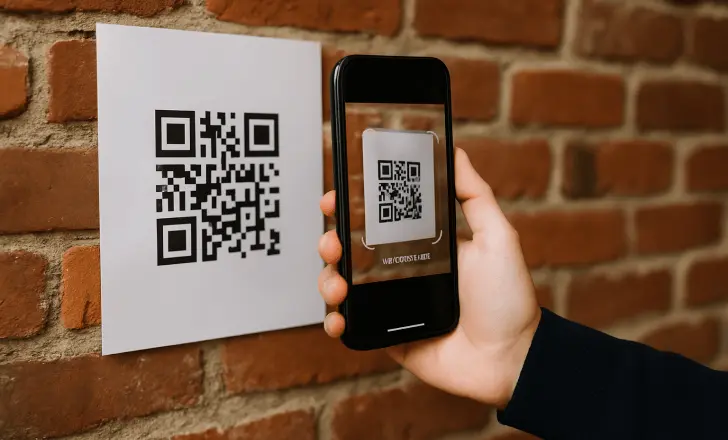
Online QR Code Scanner: How to Scan QR Codes Without an App
QR codes have become a practical way to access websites, share information, connect to digital services, and complete everyday tasks. While smartphones commonly include built-in QR scanning features, not every situation requires a dedicated application.
An online QR code scanner can be useful when you want to decode a QR code through a web browser. This approach is particularly convenient when the code is already available as an image on a computer or another device.
What Is an Online QR Code Scanner?
An online QR code scanner is a web-based tool that reads the data stored within a QR code. Instead of downloading and installing software, users can access the scanner directly through a compatible browser.
Depending on the service, the scanner may allow users to upload an image containing a QR code and then display the information encoded within it.
How to Scan a QR Code Without an App
Scanning a QR code online is generally a straightforward process. The exact interface may differ between services, but the basic steps are similar.
- Open an online QR scanning service in your browser.
- Select the option to upload or scan a QR code.
- Choose an image containing the QR code from your device.
- Wait for the scanner to analyze the image.
- Review the decoded information.
- If the result is a website, check the URL before opening it.
This method can be especially useful if the QR code is saved as a screenshot, photograph, document image, or other supported file.
Why Scan QR Codes Online?
Using a browser-based scanner can be convenient in several situations. For example, you may have a QR code saved on a desktop computer but not have access to a smartphone at that moment.
An online scanner can also eliminate the need to install another application for occasional QR code scanning. This can be helpful for users who only need to decode QR codes from time to time.
Common Situations
An online scanner may be useful when:
- A QR code is saved as an image on a computer.
- You want to inspect a QR code from a screenshot.
- You prefer not to install an additional mobile application.
- You need to quickly decode a QR code from an existing image.
- You are working with digital documents containing QR codes.
What Can a QR Code Store?
QR codes can contain different types of information. The data encoded in a QR code depends on how it was created and what purpose it serves.
Common examples include website addresses, text, contact details, email information, phone numbers, Wi-Fi credentials, and event-related information.
Some QR codes direct users to web pages where additional information or services are provided.
Tips for Successful QR Code Scanning
Image quality can influence whether a QR code is decoded correctly. A clear image with the entire code visible generally gives an online scanner the best chance of recognizing it.
Avoid heavily cropped, distorted, or blurry images. If possible, use an original image rather than a low-quality screenshot or compressed copy.
Check the Image Before Uploading
Make sure all four corners of the QR code are visible and that nothing is covering important parts of the pattern. Excessive editing or filters can also make a QR code harder to read.
If the first attempt does not work, try using a clearer version of the image or capturing the code again under better conditions.
Is Scanning a QR Code Safe?
The act of scanning a QR code does not necessarily mean that the destination is trustworthy. QR codes can lead to legitimate websites, but they can also be used to direct people to phishing pages or other potentially harmful content.
Always review the decoded result before interacting with it. If a link looks unfamiliar or a page unexpectedly requests sensitive information, consider leaving the page instead of continuing.
QR Code Safety Tips
- Check unfamiliar URLs carefully before visiting them.
- Avoid entering passwords or payment information on suspicious pages.
- Be cautious with QR codes from unknown sources.
- Do not download unexpected files after scanning.
- Keep your browser and device security features updated.
Online Scanner vs. QR Scanner App
A dedicated app can be convenient when scanning physical QR codes with a smartphone camera. However, an online scanner can be more practical when the QR code is already stored digitally.
The right option depends on the situation. For occasional scans from images, a browser-based service may be sufficient. For frequent scanning of physical codes, a phone’s built-in camera or dedicated scanner can be more convenient.
Final Thoughts
You do not always need a dedicated application to decode a QR code. A browser-based scanner can provide a simple way to process QR code images, particularly when working from a computer or with digital files.
Regardless of the scanning method, take a moment to review the decoded information before following links or sharing personal details. Combining convenient scanning with basic online safety practices makes QR codes easier and safer to use.


