
How Receipt Printers Integrate with Modern POS Software and Hardware
Modern point-of-sale (POS) systems combine software and hardware to help businesses manage sales, payments, inventory, and customer transactions. Retail stores, restaurants, supermarkets, and hospitality providers rely on these systems to process purchases efficiently and maintain accurate transaction records. Among the essential hardware components, receipt printers play an important role by converting digital transaction information into physical documents.
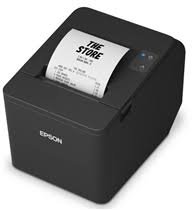
A modern Receipt Printer can connect with compatible POS terminals, computers, tablets, and other business devices through different communication interfaces. Successful integration allows businesses to automate receipt generation, reduce manual work, and maintain consistent transaction workflows across their operations.
1. Understanding the Relationship Between Receipt Printers and POS Systems
A POS system typically consists of software and hardware that work together to complete business transactions. The software processes sales information, while connected hardware performs tasks such as accepting payments, scanning products, and printing receipts.
A receipt printer receives transaction details from the POS application and produces a physical record. These details may include product descriptions, quantities, prices, taxes, discounts, payment methods, and business information.
The integration process usually follows a straightforward sequence:
- An employee enters products or services into the POS application.
- The software calculates the transaction total.
- The customer completes payment.
- The POS system formats the receipt information.
- The print command is sent to the connected printer.
- The printer produces the receipt.
This automated process helps businesses maintain consistent documentation without manually preparing transaction records.
2. The Role of POS Software in Receipt Printing
POS software manages the information required to complete sales and generate receipts. It communicates with connected hardware through compatible drivers, printing services, or supported communication protocols.
The software determines what information appears on the receipt and how it is arranged. Businesses may configure receipt templates to include logos, product details, tax information, promotional messages, return policies, and payment summaries.
Some POS applications also allow employees to select between printed and digital receipts. This flexibility can help businesses accommodate different customer preferences.
Before integrating a printer, businesses should verify that their POS software supports the specific model, operating system, and printing interface.
3. Common Hardware Components Connected to Receipt Printers
Receipt printers rarely operate as completely independent devices in modern commercial environments. They are usually part of a larger POS hardware setup.
POS Terminals and Computers
<AsyncImage query=”modern retail point of sale terminal computer cash register checkout counter” aspectRatio=”16:9″ maxHeight={190}/>
POS terminals and computers run the sales application and send printing instructions to connected devices. Depending on the configuration, a printer may connect directly to a terminal or communicate through a shared network.
Barcode Scanners
<AsyncImage query=”retail barcode scanner scanning product at point of sale checkout” aspectRatio=”16:9″ maxHeight={190}/>
Barcode scanners capture product information and transfer it to the POS application. After the transaction is completed, the printer produces a receipt containing the scanned products and their prices.
Cash Drawers
<AsyncImage query=”retail point of sale cash drawer open beside receipt printer” aspectRatio=”16:9″ maxHeight={190}/>
Many POS systems connect cash drawers to receipt printers through a supported drawer interface. When a cash transaction is completed, the software may send a command that triggers the drawer to open.
Payment Terminals
<AsyncImage query=”modern credit card payment terminal beside POS receipt printer” aspectRatio=”16:9″ maxHeight={190}/>
Payment terminals process card and other electronic transactions. Depending on the system configuration, payment information can be transferred to the POS application, which then generates a transaction receipt.
4. USB Connectivity for Direct POS Integration
USB is one of the most common connection methods for receipt printers. It allows a printer to connect directly to a computer or compatible POS terminal.
This arrangement is often suitable for small retail stores, cafés, and individual checkout stations. Once the appropriate driver is installed, the POS application can communicate with the printer through the operating system.
USB connections are generally straightforward to configure, but cable length and physical placement should be considered. Businesses operating multiple checkout stations may need separate printer connections for each workstation.
5. Ethernet Connectivity for Network-Based POS Systems
Ethernet allows receipt printers to connect to a local business network. This can be useful when several POS terminals need access to printing equipment or when printers are installed in separate departments.
For example, a restaurant may use network-connected printers at the kitchen, bar, and front counter. The POS system can send different print jobs to the appropriate devices based on order categories or service locations.
Network printing also allows businesses to position printers away from individual computers. However, correct IP address configuration, network access, and software support are necessary for reliable operation.
6. Bluetooth and Wi-Fi Integration
Wireless connectivity supports POS arrangements that do not depend entirely on direct data cables.
Bluetooth Integration
Bluetooth printers can connect to compatible tablets, smartphones, and other nearby devices. This makes them useful for mobile POS systems, table-side payments, food trucks, and temporary retail locations.
The devices must be paired correctly, and the POS application must support the printer’s Bluetooth communication method.
Wi-Fi Integration
Wi-Fi printers communicate through a supported wireless network. They can work with compatible devices connected to the same network, making them useful for flexible checkout arrangements and multi-station business environments.
Wireless installations should account for network coverage, security settings, and potential interference. A stable connection is important for avoiding delayed or failed print jobs.
7. The Importance of Printer Drivers and Printing Protocols
Drivers and printing protocols help POS software communicate with receipt printer hardware. A driver translates operating-system print instructions into commands that a specific printer can understand.
Some POS applications also communicate directly with printers through supported command languages or software development kits. These methods can provide more control over receipt formatting, cutting, drawer activation, and other device functions.
Common compatibility checks include:
- Operating system and driver support.
- Supported printer command languages.
- POS application compatibility.
- Available connection interfaces.
- Support for barcode and graphic printing.
- Access to manufacturer configuration utilities.
Using the correct driver and communication method helps reduce formatting errors, missing characters, and connection problems.
8. How Receipt Printing Works in Cloud-Based POS Systems
Cloud-based POS systems store or process business information through internet-connected platforms. They allow authorized employees to access sales tools from supported computers, tablets, and mobile devices.
A compatible receipt printer can work with a cloud POS platform through a local printing service, supported application, print server, or network configuration. When a transaction is completed, the system sends the receipt data through the appropriate printing connection.
This arrangement can support businesses with multiple locations because sales information and management functions may be accessible through a centralized platform.
However, cloud-based software does not automatically make every printer compatible. Businesses should check whether the POS provider supports local, network, or cloud printing for the selected model.
9. Receipt Printer Integration in Retail Stores
Retail environments use POS systems to manage product sales, discounts, taxes, returns, and inventory-related information. Receipt printers help complete this process by producing customer transaction records.
When a cashier scans products, the POS application calculates the total and prepares the receipt. After payment, the printer produces a document containing the relevant transaction details.
Larger stores may use multiple printers across different checkout counters. Network integration can help connect these devices to the business’s existing POS infrastructure.
Retailers may also configure receipts to include loyalty program information, promotional codes, return conditions, and store contact details.
10. Integration in Restaurants and Food Service Businesses
Restaurants often have more complex printing requirements because they manage customer bills and internal order communication.
A POS system may send customer receipts to a front-counter printer while routing food orders to printers installed in different kitchen areas. For example, drink orders may be sent to a bar printer, while food preparation instructions go to a kitchen station.
This arrangement helps employees organize orders and coordinate service activities. It can also reduce the need for handwritten tickets and manual communication between departments.
When selecting equipment for restaurant integration, businesses should consider network reliability, software compatibility, printing speed, and the operating conditions around each printer.
11. Integration in Hotels and Hospitality Operations
Hotels and hospitality businesses use POS systems to manage several types of transactions, including accommodation payments, restaurant purchases, room service, and additional guest services.
Receipt printers can connect to front-desk terminals, restaurant POS stations, and other supported systems to produce payment records.
A hotel restaurant, for example, may print a customer bill at the dining counter while the hotel’s main management system records the transaction. Depending on the software, charges may also be transferred to a guest account for later settlement.
Integrated printing helps maintain consistent transaction documentation across different service departments.
12. Common Integration Problems and Troubleshooting Methods
Even compatible equipment may experience technical problems during installation or everyday operation. Understanding common causes can help businesses restore printing functionality more quickly.
| Common issue | Possible cause | Troubleshooting method |
|---|---|---|
| Printer not detected | Missing driver or loose connection | Check cables and install the correct driver |
| Incorrect receipt formatting | Unsupported commands or wrong settings | Review POS configuration and printer compatibility |
| Delayed printing | Network congestion or software processing delays | Check the connection and POS system performance |
| Printer disconnects | Unstable wireless or network connection | Verify signal strength and network settings |
| Cash drawer does not open | Incorrect drawer connection or command | Check the supported interface and POS configuration |
| Blank or faded receipts | Incorrect paper or printhead condition | Use compatible paper and inspect the printhead |
If basic troubleshooting does not resolve the problem, businesses should consult the printer manufacturer or POS software provider for technical support.
13. Best Practices for Successful POS and Printer Integration
A well-planned installation can reduce configuration problems and improve long-term reliability.
Businesses should follow several practical steps:
- Check compatibility first: Confirm that the printer supports the POS software and operating system.
- Choose the correct connection: Select USB, Ethernet, Bluetooth, or Wi-Fi according to the installation requirements.
- Install official drivers: Use compatible software from the printer manufacturer.
- Configure receipt templates: Ensure transaction information is displayed correctly.
- Test all connected functions: Check printing, cutting, barcode output, and cash drawer activation where applicable.
- Secure network connections: Use appropriate access controls for network-connected equipment.
- Maintain the hardware: Clean the printer and inspect cables, paper-feeding components, and other accessible parts regularly.
Testing the complete POS workflow before using the system for live transactions can help identify issues early.
14. How Integrated Receipt Printing Supports Business Efficiency
Integrating printers with POS software and hardware can improve transaction management by reducing manual tasks and maintaining consistent documentation.
Automated receipt generation helps employees complete purchases without preparing transaction details separately. Connections with barcode scanners and payment terminals also help keep sales information organized within a single workflow.
For businesses with multiple service areas, network-based printing can direct documents to the appropriate location. This is especially useful in restaurants, hotels, and larger retail environments.
The overall benefits depend on the quality of the integration, compatibility of the equipment, and reliability of the software and network infrastructure.
15. Choosing a Receipt Printer for a Modern POS Environment
Selecting a suitable printer requires evaluating both hardware specifications and software requirements.
Important considerations include printing technology, output speed, paper dimensions, connection options, supported command languages, and operating-system compatibility.
Small businesses may prefer compact USB or Bluetooth models for straightforward installations. Larger retailers may require Ethernet connectivity and support for multiple checkout stations. Restaurants may need equipment that works with kitchen order management software and different printing locations.
Businesses should also consider maintenance requirements, warranty coverage, replacement-part availability, and technical support. These factors help ensure that the selected printer remains suitable as transaction requirements change.
Conclusion
Receipt printers integrate with modern POS software and hardware to support automated transaction documentation across retail, restaurant, and hospitality environments. Through USB, Ethernet, Bluetooth, and Wi-Fi connections, these devices can communicate with computers, tablets, payment terminals, and other compatible equipment.
Successful integration depends on suitable drivers, supported printing protocols, reliable connectivity, and proper configuration. By evaluating compatibility and testing the complete transaction workflow, businesses can create an efficient POS environment that supports accurate receipts and dependable daily operations.


