
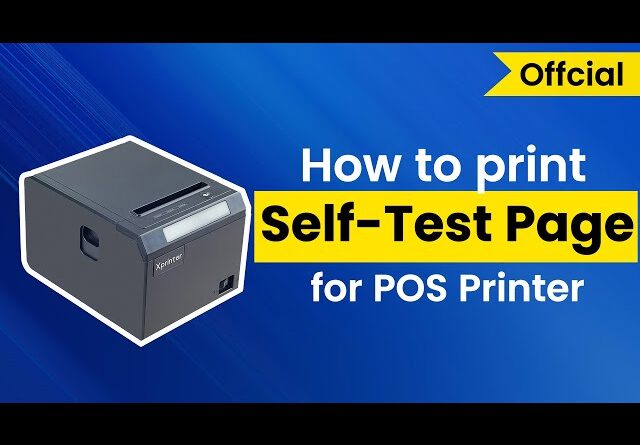
Xprinter 80mm Thermal Printer: Understanding Connectivity and Compatibility
Reliable connectivity is an important part of any receipt-printing setup. A printer may have strong printing performance, but it still needs to communicate properly with computers, POS terminals, payment systems, or other devices.
An Xprinter 80mm Thermal Printer can be used in different point-of-sale environments, depending on the specific model and available interfaces. Understanding connection types, drivers, operating systems, and POS compatibility can help businesses choose and configure a printer more effectively.
Why Connectivity Matters
The connection between a receipt printer and the POS system determines how print jobs are transmitted. An unsuitable or poorly configured connection can lead to delays, failed print jobs, or communication errors.
Businesses should identify their existing hardware and network setup before selecting a printer. This makes it easier to choose an interface that fits the current working environment.
USB Connectivity
USB is a common connection method for receipt printers. It can be particularly convenient for a single computer or POS workstation located close to the printer.
USB connections are generally straightforward to configure, but the required driver still needs to be installed correctly. Businesses should also check whether the POS software recognizes the selected printer and port.
Ethernet Connectivity
Ethernet can be useful for businesses that need to connect a printer to a local network. This approach may be suitable for retail stores or other environments with multiple connected devices.
A network-connected printer can provide greater flexibility in positioning and access. However, network settings such as IP configuration may need to be properly established before printing works reliably.
Serial Connections
Some POS environments continue to use serial interfaces, particularly where older or specialized equipment is involved.
If a business relies on serial communication, it should confirm that the printer and POS hardware use compatible interfaces and communication settings. This is particularly important when integrating newer equipment with an existing system.
Wireless Connectivity
Certain printer models may support wireless communication. This can reduce the need for physical cables and provide additional flexibility when arranging a workstation.
However, wireless performance depends on the local network environment. Businesses should consider signal strength, network stability, security, and compatibility with their POS software before choosing a wireless setup.
Operating System Compatibility
The printer’s driver must be compatible with the operating system running the POS application or computer.
Before installation, check the manufacturer’s supported operating systems and available driver versions. Using an appropriate driver can help ensure that print jobs are processed correctly.
POS Software Compatibility
POS software controls how receipts are formatted and sent to the printer. Compatibility therefore involves more than simply connecting a cable.
Check whether the POS platform supports the printer model, connection type, receipt commands, paper width, and other required settings. Some systems may require specific configuration steps.
Printer Drivers
Drivers act as communication software between the operating system and the printer. Without the appropriate driver, the computer may not recognize the printer correctly.
Always obtain drivers from an appropriate manufacturer or software source and select the version that matches the operating system. Keep installation details available for future troubleshooting.
ESC/POS and Printer Commands
Many receipt printers use command languages designed for POS printing. These commands allow software to control functions such as text formatting, paper feeding, cutting, and barcode printing.
Businesses using customized POS software should check which printer command language is supported. This can be especially important when developing or configuring specialized applications.
Paper Width Configuration
Compatibility also includes receipt formatting. An 80mm printer should be configured correctly within the POS software so that the printed content matches the available paper width.
Incorrect configuration can result in excessive margins, clipped information, or poorly aligned receipts. Check both printer and software settings if formatting problems occur.
Barcode and Graphic Compatibility
Retail businesses often need to print barcodes, logos, QR codes, and other graphics. The printer, driver, and POS software must work together to produce these elements correctly.
Test important receipt components before putting the printer into regular use. This can help identify formatting or readability issues early.
Network Configuration
For Ethernet or wireless setups, network configuration deserves particular attention. The printer may need a specific IP address or other network settings.
If several devices share the same network, document the printer’s configuration so that future maintenance or troubleshooting is easier.
Common Compatibility Problems
Several issues can prevent a receipt printer from working as expected. Common examples include:
- Incorrect or missing drivers
- Unsupported operating systems
- Wrong printer port selection
- Incorrect paper-width settings
- Network configuration errors
- Incompatible POS software
- Outdated software or drivers
- Incorrect printer command settings
Checking these areas systematically can often identify the source of a communication problem.
Testing the Connection
After installation, perform several test prints before relying on the printer for live transactions. Confirm that the POS system sends jobs to the correct device and that receipts are printed completely.
For network printers, test the connection from each relevant workstation. For USB printers, check that the correct port and driver are selected.
Planning for Multiple POS Stations
Businesses with several checkout terminals should consider their long-term connectivity requirements. A network-connected printer may provide more flexibility than a direct connection in some environments.
Before expanding the POS system, determine how printers will be shared and whether the existing network can support the planned configuration.
Keep Software Updated Carefully
Driver and POS software updates can improve compatibility, but updates may occasionally change existing configurations.
Before applying major updates, confirm that the printer remains supported. Businesses should also keep records of working configurations so they can troubleshoot more efficiently if a change causes an issue.
Conclusion
Understanding connectivity and compatibility is essential when setting up an Xprinter 80mm thermal printer. USB, Ethernet, serial, and wireless connections can each serve different business requirements, while drivers, operating systems, POS software, and printer commands determine how effectively the equipment communicates.
Before purchasing or installing a printer, businesses should review their existing POS environment and confirm compatibility. Proper configuration and testing can help reduce communication errors and provide a more reliable receipt-printing workflow.


